PACE Students.
Here is the link to open up a Questions Google Form. Write any questions you have while watching the video. Use this form to prevent talking during the video so everyone can watch without interruption.
https://spreadsheets.google.com/viewform?formkey=dHFBNVo2eG5Jb3h1aVpNOG52Z0RNT0E6MQ
Wednesday, September 29, 2010

Tuesday, September 21, 2010
Chapter 1 Review and Answers
Just wanted to let everyone know that I just posted the Chapter 1 Review and the answers with work on Blackboard. It is under class "assignments."
Monday, September 20, 2010
Ch. 1 Review Warm Up
To enlarge the image, click on it.
Make sure that you are using 3 points to name each angle.

Make sure that you are using 3 points to name each angle.

Wednesday, September 8, 2010
1.5: Using Formulas in Geometry
Thursday and Friday we are going to be doing several activities throughout class, but it is going to be on your schedule. There are a few things that you need to complete to leave the room, they will be your ticket out of here.
Schedule:
Quiz:
1. First, login to Blackboard and enroll in my class if you have not done so already, search: Everson. Next, click on the "Assignments" category on the left of the page. The last link in bright pink is your 1.1-1.4 quiz. Go ahead and take the quiz. After you have finished you have some more items on your schedule to complete for your ticket out of class.
1.5: Using Formulas in Geometry
2. After your quiz is complete and submitted to Ms. Everson, take a 1.5: Using Formulas in Geometry sheet and complete it. It discusses the formulas for perimeter and area of triangles, rectangles, squares and circles. Use the video links I have attached to help you fill it out, you may use headphones while you listen to the videos. You can repeat these videos as many times as you need, skip over parts you do not need as much review on, and if you have any questions do not forget to ask. This sheet gets stapled into page 12 of your notebook, and you may work on it in partners or as a group as long as you are not disturbing anyone around you.
Area and Perimeter:
http://www.khanacademy.org/video/area-and-perimeter
Area of rectangles, parallelograms, and triangles:
http://www.brainpop.com/math/geometryandmeasurement/areaofpolygons/
Circumference and area of circles:
http://www.brainpop.com/math/geometryandmeasurement/circles/
http://www.khanacademy.org/video/circles--radius--diameter-and-circumference
Area of circles:
http://www.khanacademy.org/video/area-of-a-circle
Blog:
3. After you have completed the 1.5 sheet and stapled it into your notebook, go back into BB. This time click on the "Information" category on the left hand side. At the bottom is the link in green titled "Creating your own blog." In it I have included very detailed instructions, with pictures, about how to set up your personal blog. If you already have a blog (students who have Ms. Tamez), then go to your blog and look for the icon that says "create new blog." You might need me to help you set it up.
Here are two videos that I created to help you with your blog. The first link is for anyone who has never set up a blog before, and the second is for someone who has a blog already. If you already have a blog you can just start a second on the same account.
Right click on the link and open it in a new tab,
Your first blog:
http://www.screencast.com/t/NjRhNWZiMzYt
You already have a blog:
http://www.screencast.com/t/YjAzOGJiZmU
These are your 3 things that need to be done before you leave today. I will be checking them at the end of class.
Angles project and Cognitive Tutor:
When you are finished with those three items you may work on your Angles Project that was assigned last class and is due next week, or you may start to work in Cognitive Tutor.
To get to the Geometry Cognitive Tutor right click on the following link and open it in a different tab/window: http://online.carnegielearning.com/
Then, click on the student option. Next, enter your school ID, if you want, just copy and paste this over: academy of irving-75038. You will have to enter this every time you login to Cognitive Tutor. Next, click "launch Cognitive Tutor." Your computer blocks Java from running, so you will have to click that blue link that says "click here." Once Java finishes setting up it askes for your username. Your username is: first name last name. For example, my username would be jesse everson. Once you are in Cognitive Tutor, play around in it. At the top are three options. Click on the "problems" tab at the top, they should be review from previous lessons, if you need help, click on the lesson tab at the top and review the material.
I will be walking around the room to help assist with all of this and we might have to come together as a class to complete some tasks, but use this time to your advantage. I have set it up to be personalized to what you need and with many resources to help.
Angles Project:
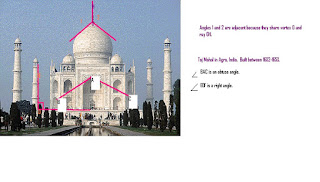
Here is an example of one photo for your angles project. Observe that there are three angles, including an example of adjacent angles. Notice I have explained why my angles are adjacent and I have included the name of the building and its location. Click on the image to enlarge it and read the writing.
Schedule:
Quiz:
1. First, login to Blackboard and enroll in my class if you have not done so already, search: Everson. Next, click on the "Assignments" category on the left of the page. The last link in bright pink is your 1.1-1.4 quiz. Go ahead and take the quiz. After you have finished you have some more items on your schedule to complete for your ticket out of class.
1.5: Using Formulas in Geometry
2. After your quiz is complete and submitted to Ms. Everson, take a 1.5: Using Formulas in Geometry sheet and complete it. It discusses the formulas for perimeter and area of triangles, rectangles, squares and circles. Use the video links I have attached to help you fill it out, you may use headphones while you listen to the videos. You can repeat these videos as many times as you need, skip over parts you do not need as much review on, and if you have any questions do not forget to ask. This sheet gets stapled into page 12 of your notebook, and you may work on it in partners or as a group as long as you are not disturbing anyone around you.
Area and Perimeter:
http://www.khanacademy.org/video/area-and-perimeter
Area of rectangles, parallelograms, and triangles:
http://www.brainpop.com/math/geometryandmeasurement/areaofpolygons/
Circumference and area of circles:
http://www.brainpop.com/math/geometryandmeasurement/circles/
http://www.khanacademy.org/video/circles--radius--diameter-and-circumference
Area of circles:
http://www.khanacademy.org/video/area-of-a-circle
Blog:
3. After you have completed the 1.5 sheet and stapled it into your notebook, go back into BB. This time click on the "Information" category on the left hand side. At the bottom is the link in green titled "Creating your own blog." In it I have included very detailed instructions, with pictures, about how to set up your personal blog. If you already have a blog (students who have Ms. Tamez), then go to your blog and look for the icon that says "create new blog." You might need me to help you set it up.
Here are two videos that I created to help you with your blog. The first link is for anyone who has never set up a blog before, and the second is for someone who has a blog already. If you already have a blog you can just start a second on the same account.
Right click on the link and open it in a new tab,
Your first blog:
http://www.screencast.com/t/NjRhNWZiMzYt
You already have a blog:
http://www.screencast.com/t/YjAzOGJiZmU
These are your 3 things that need to be done before you leave today. I will be checking them at the end of class.
Angles project and Cognitive Tutor:
When you are finished with those three items you may work on your Angles Project that was assigned last class and is due next week, or you may start to work in Cognitive Tutor.
To get to the Geometry Cognitive Tutor right click on the following link and open it in a different tab/window: http://online.carnegielearning.com/
Then, click on the student option. Next, enter your school ID, if you want, just copy and paste this over: academy of irving-75038. You will have to enter this every time you login to Cognitive Tutor. Next, click "launch Cognitive Tutor." Your computer blocks Java from running, so you will have to click that blue link that says "click here." Once Java finishes setting up it askes for your username. Your username is: first name last name. For example, my username would be jesse everson. Once you are in Cognitive Tutor, play around in it. At the top are three options. Click on the "problems" tab at the top, they should be review from previous lessons, if you need help, click on the lesson tab at the top and review the material.
I will be walking around the room to help assist with all of this and we might have to come together as a class to complete some tasks, but use this time to your advantage. I have set it up to be personalized to what you need and with many resources to help.
Angles Project:
Here is an example of one photo for your angles project. Observe that there are three angles, including an example of adjacent angles. Notice I have explained why my angles are adjacent and I have included the name of the building and its location. Click on the image to enlarge it and read the writing.

Tuesday, August 31, 2010
1.3/4 vocabulary practice
Here is the link to a quizlet to practice and study the vocabulary for chapter 1, lessons 3 and 4.
http://quizlet.com/2630321/134-vocabulary-flash-cards/
http://quizlet.com/2630321/134-vocabulary-flash-cards/
Monday, August 30, 2010
1.2: Line Segments and Midpoint
One week down. We just completed our first full week of school and everything went great! All the geometry classes are going well, some may be more social than others, but everyone is friendly and respectful. We just finished the lab for 1.2, I hope that you enjoyed working in groups to solve problems and discover new postulates (the big ideas from the lesson). There is going to be much more of that to come this year.
Here are some questions about material in 1.2 that we covered in the lab. Use your 1.2 lab handout to help you answer the questions and always use complete sentences. You can record your answers in the google document that I created, right click and open it in a new tab, here is the link: https://spreadsheets.google.com/viewform?formkey=dHgtRmFJV2RaTzBzcHJxRFBUc2pzOFE6MQ
1. If point N is at-4 and point O is at 2, find the distance between the two points. Use the 2nd postulate we discussed in the lab to answer the question.

After giving the answer, please describe how you found it. Use complete sentences.
2. When reviewing the first postulate that we discussed in the 1.2 lab (the ruler postulate), what does "one-to-one correspondence" mean. Please explain in complete sentences.

3. Why is 4 the midpoint between 0 and 8?

4. Point J is between I and K. IJ is 11 cm and JK is 4, find IK.
(draw a picture on a piece of scratch paper to help solve)
Answer the question and explain how you found it. What postulate did you use to solve this problem? Use your 1.2 lab handout and answer in complete sentences.
Here are some questions about material in 1.2 that we covered in the lab. Use your 1.2 lab handout to help you answer the questions and always use complete sentences. You can record your answers in the google document that I created, right click and open it in a new tab, here is the link: https://spreadsheets.google.com/viewform?formkey=dHgtRmFJV2RaTzBzcHJxRFBUc2pzOFE6MQ
1. If point N is at-4 and point O is at 2, find the distance between the two points. Use the 2nd postulate we discussed in the lab to answer the question.

After giving the answer, please describe how you found it. Use complete sentences.
2. When reviewing the first postulate that we discussed in the 1.2 lab (the ruler postulate), what does "one-to-one correspondence" mean. Please explain in complete sentences.

3. Why is 4 the midpoint between 0 and 8?
4. Point J is between I and K. IJ is 11 cm and JK is 4, find IK.
(draw a picture on a piece of scratch paper to help solve)
Answer the question and explain how you found it. What postulate did you use to solve this problem? Use your 1.2 lab handout and answer in complete sentences.
Tuesday, August 24, 2010
1-1: Points, Lines, and Planes stations
What a great two days of school we just had. I hope all of you are just as excited as I about the coming year together. Everyone sounded eager to try doing more group work and discovery labs. I hope that the rest of your classes went well.
Today we are going to start working on 1-1: Points, Lines, and Planes. For this lesson we are going to set up stations that you will be rotating through. This blog is going to provide you with the directions for each station, so depending on which station you are on, those are the directions you will read. Remember, you might not start on Station 1, so you might not be reading the first set of directions.
Station 1: 1-1 Foldable
Materials
interactive notebook
pen/pencil
1 piece of paper
Directions
1. Fold the paper and set it up with the correct headings like the example paper on the table.
2. Now, as a group discuss appropriate definitions to fill in the column titled "Group Definition".
3. sketch an example of each vocabulary word in the column "sketches"
4. Try and fill in the "notation and example" column as a group, we will go over this as a class
5. When you foldable is complete, staple it into page 3 of your interactive notebook. We are adding it to 1-1: vocab in the Table of Contents.
Station 2: Quizlet
Materials
Laptop
Directions
1. Click on the following link http://quizlet.com/2599722/1-1-2-vocab-flash-cards/
2. Use Quizlet to practice the vocabulary words from 1-1 and 1-2. First use "Learn" to practice matching definitions with the word. Then, play "scatter" for more matching, and finally "race space" will test your quick association with the words and definitions. At the end, "test" your knowledge you have gained.
3. If you still have time, play "scatter" and "race space" again.
Station 3: PowerPoint examples
Materials
Laptop
interactive notebook
Directions
1. Login into BlackBoard 9 and enroll into my class, search: Everson. You are enrolling in "Everson Geometry"
2. Click the "Content" tab on the left of your screen. Open the PowerPoint for station 3.
3. Make sure to put your drawings and responses from the PowerPoint on page 5 of your interactive notebook. Title the page "1-1: station 3 PowerPoint" and put this title in your Table of Contents.
Station 4: Project
Materials
Laptop
interactive notebook
Directions
1. Go to Everson Geometry in Blackboard 9. If you are not already enrolled do so now. If you need assistance enrolling in the class just ask Ms. Everson.
2. Click the "Content" tab on the left of the screen. Then click on the heading "Points, Lines, Planes Project" document and read through your expectations for the project.
3. The due date for the project is on the paper, ask Ms. Everson for a hard copy when you get to the bottom of the paper.
Today we are going to start working on 1-1: Points, Lines, and Planes. For this lesson we are going to set up stations that you will be rotating through. This blog is going to provide you with the directions for each station, so depending on which station you are on, those are the directions you will read. Remember, you might not start on Station 1, so you might not be reading the first set of directions.
Station 1: 1-1 Foldable
Materials
interactive notebook
pen/pencil
1 piece of paper
Directions
1. Fold the paper and set it up with the correct headings like the example paper on the table.
2. Now, as a group discuss appropriate definitions to fill in the column titled "Group Definition".
3. sketch an example of each vocabulary word in the column "sketches"
4. Try and fill in the "notation and example" column as a group, we will go over this as a class
5. When you foldable is complete, staple it into page 3 of your interactive notebook. We are adding it to 1-1: vocab in the Table of Contents.
Station 2: Quizlet
Materials
Laptop
Directions
1. Click on the following link http://quizlet.com/2599722/1-1-2-vocab-flash-cards/
2. Use Quizlet to practice the vocabulary words from 1-1 and 1-2. First use "Learn" to practice matching definitions with the word. Then, play "scatter" for more matching, and finally "race space" will test your quick association with the words and definitions. At the end, "test" your knowledge you have gained.
3. If you still have time, play "scatter" and "race space" again.
Station 3: PowerPoint examples
Materials
Laptop
interactive notebook
Directions
1. Login into BlackBoard 9 and enroll into my class, search: Everson. You are enrolling in "Everson Geometry"
2. Click the "Content" tab on the left of your screen. Open the PowerPoint for station 3.
3. Make sure to put your drawings and responses from the PowerPoint on page 5 of your interactive notebook. Title the page "1-1: station 3 PowerPoint" and put this title in your Table of Contents.
Station 4: Project
Materials
Laptop
interactive notebook
Directions
1. Go to Everson Geometry in Blackboard 9. If you are not already enrolled do so now. If you need assistance enrolling in the class just ask Ms. Everson.
2. Click the "Content" tab on the left of the screen. Then click on the heading "Points, Lines, Planes Project" document and read through your expectations for the project.
3. The due date for the project is on the paper, ask Ms. Everson for a hard copy when you get to the bottom of the paper.
Subscribe to:
Posts (Atom)